Posts

Showing posts with the label ICT Skills

Learning Python & Data Analysis

Image
Introduction Recently I have been teaching a friend how to programme in the language called Python and I thought I would make the resources we have been using available to all. Most of the material is based on the book called Automate the Boring Stuff. I have adapted those open source materials as needed for our programme. Additional Resource Links Automate the Boring Stuff  with Python Python Tasks   Preface · A Byte of Python   PY4E - Python for Everybody Welcome to Data Analysis in Python! — Data Analysis in Python 0.1 documentation School of Data - Evidence is Power Trinket Tool  Data Analysis Tools from 2022 Pivot Tables in Google Sheets Tutorial  Kaggle - Machine Learning Data Analysis  How to Create a Dashboard in Google Sheets (10 steps) - Query Formula - YouTube How to Create Dropdown Filters on Google Sheets Dashboard Using QUERY Formula (ADVANCED TRICK) - YouTube How to Build a Professional Dashboard in Google Sheets (Query Formula Advanced C...
Useful Research Tools List

Image
Intro Over the last couple of years as I have got into the world of Academia, certain tools have made my life much much easier. I thought I would put them all together in one place in case someone else finds them helpful and also so that I don't forget that they exist, going forward. Some Useful Links  Tools I've Used  Zotero - amazing reference and content management system Google Docs / Microsoft Word  Google Sheets / Excel Google Forms / Microsoft Forms  Qualtrics - high quality powerful survey software and Data Analysis  Timeline JS - making useful Timelines from spreadsheets  Diagrams.net - free tool for complex diagram drawing integrates with Drive / OneDrive Google Data Studio - for Data Analysis  Atlas.Ti for Qualitative Data Analysis  Temi - Transcription Services for Audio  Google Scholar   - Access to References Quickly BASE - Academic Search Engine  TurnItIn - Writing Feedback and Plagiarism Check  Grammarl...

A little bit about OneNote for Maths Teachers

Image
Intro Over the last year or so I have increasingly been using Microsoft OneNote to author my maths lessons. I think a lot of maths teachers would benefit from having a closer look at the tool as it has a lot features that lessen the amount of work a maths teacher has to do when preparing lessons. It is also very easy to work with, when collaborating with other maths teachers because of the native sharing functions it has. Some Useful Links  These are a collection of links I saved to help with common problems I had when starting to use OneNote as Maths Teacher.  My Online Notebooks URL   (link to the online version) Export and Import Copies of OneNote Notebooks  Import Whole Notebooks into OneNote Online URL Great OneNote Youtube Tutoria l for Maths Teachers  Summary I plan to return to this post in future and update it as I continue using OneNote in my Mathematics Teaching in 2022. 

Taking multiple Screenshots and combining into PDF for easy sharing (Win 10 and Mac)

Image
Introduction I was having a chat with a staff member at my school recently and we were talking about all the copying and pasting that goes on these days with all teachers trying to teach online. It struck me that one of the most useful skills that I have in my workflow is that ability to take multiple screenshots quickly and combine them into a pdf for easy distribution. So here is a brief description of how to do just that.  Windows To save your Screenshot https://www.howtogeek.com/ 226280/how-to-take- screenshots-in-windows-10/ Where it is saved by default  https://www.digitalcitizen. life/how-change-default- screenshots-folder-location- windows To combine your Screenshots  https://www.techspot.com/ guides/1634-combine-images- into-single-pdf-document/ Mac 1) To take screenshot CMD Shift 3 or 4  2) Screenshot saves to Desktop  3) Select relevant PNG images  4) Open with Preview  5) Cmd A (select all) 6) File  7) Print  8) Print  9) Sav...

Deepening your Pedagogy & Variety of Options for Online Learning

Image
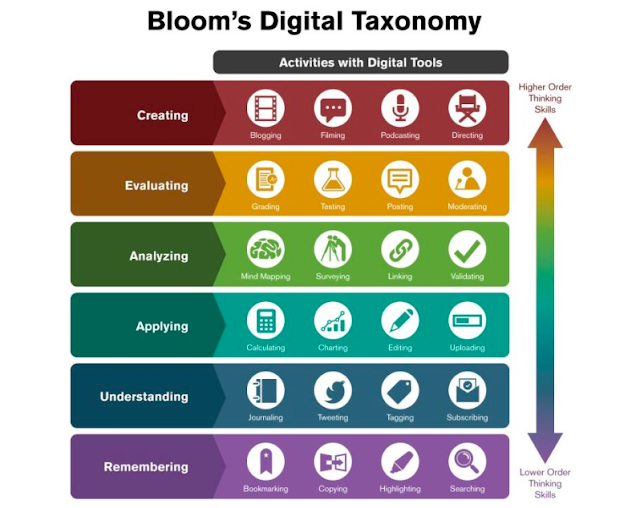
Introduction Most teachers begin their introduction to Pedagogy and Learning Design with Bloom's Taxonomy as a guide. So it's a useful place to start, as you begin to come through the initial phase of constructing some sort of functioning Learning Ecosystem online and move to wanting to deepen the quality of your Online Class. Something really important to remember as you move into this deeper level of ICT integration, is to explain the rationale for each step to your students. This is also really new to them and so guiding them through it carefully, deliberately and as slowly as needed is important if you want to get proper engagement and establish a fully functioning system. My experience is that normally teachers, including myself, underestimate how much time this setup stage actually takes. Bloom's Taxonomy and Extending it to the Digital Realm Make a Copy of this Doc >

A Getting Started Kit for Online Learning (with Templates)

Image
Introduction As most of the world has gone into a sudden phase of online learning. I thought it would be helpful to put together a starter pack of simple resources. I used these to get my classes up and running fully online, over the last week. The main things I focused on were: A place to put learning resources that students could easily get too. A way to to create a sense of community alongside the work we were doing.  A way to keep track what was going on with my students and give feedback in an efficient manner.  Having a Place to Put Things & Sequence Learning  So my go to tool for getting setup was just a simple Google Doc with 3 columns and a contents page. To add to the visual appeal I used different fonts, colours and clear headings. I have included a basic template below for anyone to use if they would like. You could also use things like: Google Classroom, Edmodo, Managebac, a Google Site, the list goes on ...  In the end you just choos...

ICT Resource Summary Page

Image
This is a collection of all my latest training resources for ICT that I have either developed or found through my professional learning network.

How to create a Personalised Learning Portfolio

Image
GOAL "Create your own digital learning portfolio showing evidence of your individual learning path." A Personal Learning Portfolio is a virtual, personal space that serves as a dynamic planning tool, archive, profile, and showcase of an individual’s lifelong learning experiences, goals and achievements. It is created by the learner, controlled by the learner, and is on a platform of his or her choice. Though the tool is geared to be an open tool that records the digital footprint of the individual, the learner controls who has access to any section of the portfolio at any given time.  Definition Credit Explanation Video Possible Content: ArtsWorks , Writing Pieces , Video Clips , Audio Recordings, Projects, Books read and reviews of them, Online Courses or Programs , Blog component, Social Campaigns, Growth Filled Experiences, Leadership Roles, Projects Initiated , Volunteer Work , Places you’ve travelled or want to travel , Interviews with Interes...

GEG Meeting Aug 2017 Grove Primary

Image
GEG Meeting Aug 2017 Grove Primary

Google Tools for Maths and Science Teachers - GEG Meeting (2017)

Image

GEG Presentation – Getting Google Certified (2017)

Image
This is a slideshow I put together for a GEG meeting. It is mainly focused  on the process of becoming google certified, from the point of view of the teacher.

Creating Custom Content for your Maths Class

Image
I have been experimenting with making my own videos and creating a “flipped” classroom environment for a couple of years now. However it hasn’t been a smooth journey, rather lots of little experiments with different tools and approaches. I recently made a series of videos for my grade 11 Maths class and got really positive feedback,  so I thought I would share my workflow for any other teachers out there conducting these type of experiments. The tools I used were my Macbook Pro 13 inch mid 2012 , my Galaxy Note 10.1 inch Tablet (N8000) with the very useful S-Pen and then the App – Explain Everything. I also knitted together everything  using iMovie.

Google Professional Development Options for Schools (2016)

Image
                     Download Link Why it’s useful All schools need to be thinking constantly about professional development for their entire staff. The Google offerings are extensive, free and have an active community of  teachers / educators/ administrators behind them. This is an ideal resource for anyone who wants to get their school moving in the direction of effective professional development. From personal experience I can highly recommend the materials that have been put together. They are all based on current educational research and have been put together with the spirit of fun and inquiry that Google seems to approach all its work with.

Shooting & Editing Video on only an iPhone (2016)

Image
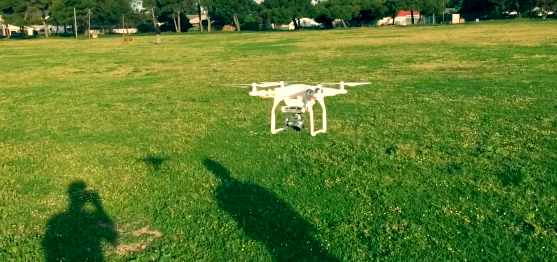
As a recent holiday challenge I decided to investigate the possibility of shooting and editing a short movie using only my phone (iPhone 5S) , no laptops/desktops allowed! I knew that a couple of years ago Apple released an Imovie App for phones and based on how fantastic iMovie is on a Mac , I decided to start there. A friend of mine has just got a Drone and so I decided to follow him around for a bit with my phone. In the end it was surprisingly easy to edit on the phone. The most difficult part was figuring out when to swipe up or down to make different menu’s appear. But your Iphone is definitely a perfectly capable device for editing video on. And since most of us carry around our phones all the time, it’s probably the easiest way to do it too. I’ll try and have another crack at making a longer more advanced movie before the year is out. Just to see how advanced it really can get if you are only shooting and editing on your phone.

Creating Engaging Multimedia

Image
Task 1: – Getting Connected & Experimenting Sign into the Chrome Web Browser (your name should reflect at the top). Go to the  Adobe Spark Website. Click on the yellow black “Start now for free” Click on your chosen Web account, probably Google (this links your Google account to Adobe Spark). You then answer a series of prompts/questions and finally get to the page below. Adobe Spark offers 3 creation choices a Post, Page or Video. (See the video below for help) Experiment with all 3 choices and decide which one you like best –  browse through the gallery of previous creations  to help you see whats possible. Finally, make a decision about which type of Spark you would like to create. Task 2 – Building a Spark Decide on a Spark project that is personally meaningful to you. ( eg Holiday Trip, Friends Birthday etc) Gather all the media (photos, videos , songs, posts …) that you would like to use in one place. Start the process of creating you...

How to give presentations that connect with your Audience

Image
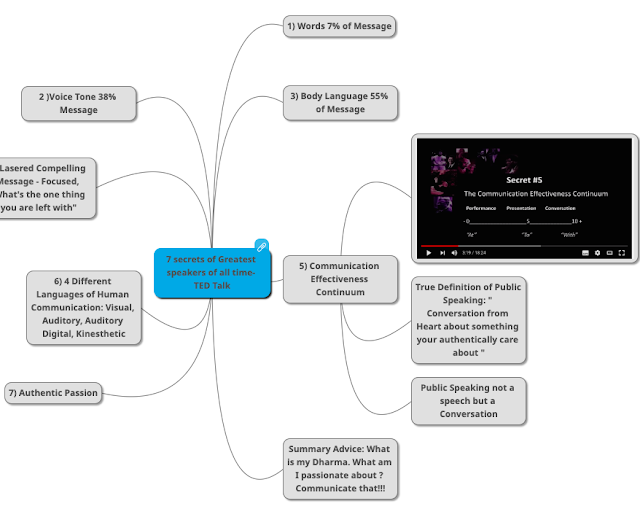
My Take: A while ago, I saw a fantastic Ted Talk on how to give engaging presentations and I decided to make this mindmap to preserve the information in an easy to access format. It’s a great mindmap to glance over before giving a presentation, as it reminds you of a lot of the fundamental stuff you should be bearing in mind, if you want to reach your audience. Full Page MindMap Link Ted Talk Link

Application to Google Teacher Academy (2013)

Image
1. Is there anything special we need to know about your video My particular passion is the “Maths of the Real World” and opening the eyes of learners to the fact that Maths doesn’t exist in a vacuum as many of them imagine. This video is intended to give a taste of that as well as a sense of my creativity and humour as an educator. The video is primarily intended to motivate my application to the Google Teacher Academy. However, I also wanted to showcase the possibilities for basic storytelling (using free or relatively inexpensive digital media tools) in learning today. My particular passion is the “Maths of the Real World” and opening the eyes of learners to the fact that Maths doesn’t exist in a vacuum or textbook as many of them imagine. Rather, it is used actively in their lives on a day to day basis. This video is intended to give a taste of that as well as a sense of my creativity and humour as an educator. 2. Describe an obstacle you encountered in you...

Experiments with Flipping the Classroom

Image
LIVESCRIBE ECHO PEN After attending a ProGro Workshop on flipping the classroom, I became interested in trying to create  my own audio visual content for learning. The tool that got my attention was something called the Livescribe Echo Pen. It recorded what you wrote on a piece of paper into an animation, as well as recording the audio at the same time. It also kept everything in sync, so that you could jump around the recording to any place you wanted to go.  I was lucky enough to be able to get hold of one second hand from the Amazon Marketplace for +- R900. It took a while to get used to teaching to only a page, but I definitely learnt a a lot going through the process. Here is one of my first attempts – trying to explain  the quadrilateral family  of shapes. Link to Folder with all Lightscribe Experiments Although I could accomplish my task of creating audio visual content for my learners. A lot of them seemed to struggle to get the correct version of...